- Home
- Nutanix
- Nutanix Certified Professional (NCP)
- NCP-US-6.5
- Nutanix Certified Professional - Unified Storage (NCP-US) v6.5 Questions and Answers
NCP-US-6.5 Nutanix Certified Professional - Unified Storage (NCP-US) v6.5 Questions and Answers
An administrator needs to scale out an existing Files instance. Based on the Company’s requirements, File instance has four FSVMs configured and needs to expand to six.
How many additional Client IP addresses and Storage IP addresses does the administrator require to complete this task?
Options:
3 Client IPs and 2 Storage IPs
2 Client IPs and 2 Storage IPs
3 Client IPs and 3 Storage IPs
2 Client IPs and 3 Storage IPs
Answer:
BExplanation:
To scale out an existing Files instance, the administrator needs to add one Client IP and one Storage IP for each additional FSVM. Since the Files instance needs to expand from four FSVMs to six FSVMs, the administrator needs to add two Client IPs and two Storage IPs in total. The Client IPs are used for communication between the FSVMs and the clients, while the Storage IPs are used for communication between the FSVMs and the CVMs. References: Nutanix Files Administration Guide, page 28; Nutanix Files Solution Guide, page 7
An administrator has received an alert AI303551 – VolumeGroupProtectionFailed details of alerts as follows:
Which error logs should the administrator be reviewing to determine why the relative service is down:
Options:
solver.log
arithmos.ERROR
Answer:
BExplanation:
The error log that the administrator should review to determine why the relative service is down is arithmos.ERROR. Arithmos is a service that runs on each CVM and provides volume group protection functionality for Volumes. Volume group protection is a feature that allows administrators to create protection policies for volume groups, which define how often snapshots are taken, how long they are retained, and where they are replicated. If arithmos.ERROR log shows any errors or exceptions related to volume group protection, it can indicate that the relative service is down or not functioning properly. References: Nutanix Volumes Administration Guide, page 29; Nutanix Volumes Troubleshooting Guide
An administrator needs to allow individual users to restore files and folders hosted in Files.
How can the administrator meet this requirement?
Options:
Configure a Protection Domain for the shares/exports.
Configure a Protection Domain on the FSVMs.
Enable Self-Service Restore on shares/exports.
Enable Self-Service Restore on the FSVMs.
Answer:
CExplanation:
Self-Service Restore (SSR) is a feature that allows individual users to restore files and folders hosted in Files without requiring administrator intervention. SSR can be enabled on a per-share or per-export basis, and users can access the snapshots of their data through a web portal or a Windows client application1. References: Nutanix Files Administration Guide1
An administrator created a bucket for an upcoming project where internal users as well as an outside consultant …. Object Browser. The administrator needs to provide both internal and consultant access to the same bucket.
The organization would like to prevent internal access to the consultant, based on their security policy.
Which two items are requires to fulfill this requirement (Choose two.)
Options:
Configure Directory Services under the Access Keys section
Generate access keys based on directory and email-based users.
Install third-party software for bucket access to all users.
Generate access keys using third-party software.
Answer:
A, BExplanation:
Nutanix Objects supports directory services integration, which allows administrators to configure access keys based on directory and email-based users. This enables granular access control and security for buckets and objects. The administrator can configure directory services under the Access Keys section in Prism Central, and then generate access keys for internal users from the directory service and for the consultant from an email address2. References: Nutanix Objects Administration Guide2
An administrator sees that the Cluster drop-down or the Subnets drop-down shows empty lists or an error message when no Prism Element clusters or subnets are available for deployment, respectively. Additionally, the administrator sees that no Prism Element clusters are listed during the addition of multi-cluster to the Object Store. What would cause the Prism Element clusters or subnets to not appear in the user interface?
Options:
The logged-in user does not have access to any Prism Central.
The logged-in user does not have access to any subnets on the allowed Prism Central.
The administrator has just created an access policy granting user access to Prism Element.
The administrator has just created an access policy denying user access to a subnet in Prism Element.
Answer:
AExplanation:
Nutanix Objects, part of Nutanix Unified Storage (NUS), is deployed and managed through Prism Central (PC), which provides a centralized interface for managing multiple Prism Element (PE) clusters. When deploying Objects or adding multi-cluster support to an Object Store, the administrator selects a PE cluster and associated subnets from drop-down lists in the Prism Central UI. If these drop-down lists are empty or show an error, it indicates an issue with visibility or access to the clusters or subnets.
Analysis of Options:
Option A (The logged-in user does not have access to any Prism Central): Correct. Prism Central is required to manage Nutanix Objects deployments and multi-cluster configurations. If the logged-in user does not have access to any Prism Central instance (e.g., due to RBAC restrictions or no PC being deployed), they cannot see any PE clusters or subnets in the UI, as Prism Central is the interface that aggregates this information. This would result in empty drop-down lists for clusters and subnets, as well as during multi-cluster addition for the Object Store.
Option B (The logged-in user does not have access to any subnets on the allowed Prism Central): Incorrect. While subnet access restrictions could prevent subnets from appearing in the Subnets drop-down, this does not explain why the Cluster drop-down is empty or why no clusters are listed during multi-cluster addition. The issue is broader—likely related to Prism Central access itself—rather than subnet-specific permissions.
Option C (The administrator has just created an access policy granting user access to Prism Element): Incorrect. Granting access to Prism Element directly does not affect visibility in Prism Central’s UI. Objects deployment and multi-cluster management are performed through Prism Central, not Prism Element. Even if the user has PE access, they need PC access to see clusters and subnets in the Objects deployment workflow.
Option D (The administrator has just created an access policy denying user access to a subnet in Prism Element): Incorrect. Denying access to a subnet in Prism Element might affect subnet visibility in the Subnets drop-down, but it does not explain the empty Cluster drop-down or the inability to see clusters during multi-cluster addition. Subnet access policies are secondary to the broader issue of Prism Central access.
Why Option A?
The core issue is that Prism Central is required to display PE clusters and subnets in the UI for Objects deployment and multi-cluster management. If the logged-in user does not have access to any Prism Central instance (e.g., they are not assigned the necessary role, such as Prism Central Admin, or no PC is registered), the UI cannot display any clusters or subnets, resulting in empty drop-down lists. This also explains why no clusters are listed during multi-cluster addition for the Object Store, as Prism Central is the central management point for such operations.
Exact Extract from Nutanix Documentation:
From the Nutanix Objects Deployment Guide (available on the Nutanix Portal):
“Nutanix Objects deployment and multi-cluster management are performed through Prism Central. The logged-in user must have access to Prism Central with appropriate permissions (e.g., Prism Central Admin role) to view Prism Element clusters and subnets in the deployment UI. If the user does not have access to Prism Central, the Cluster and Subnets drop-down lists will be empty, and multi-cluster addition will fail to list available clusters.”
An administrator is tasked with creating an Objects store with the following settings:
• Medium Performance (around 10,000 requests per second)
• 10 TiB capacity
• Versioning disabled
• Hosted on an AHV cluster
immediately after creation, the administrator is asked to change the name of Objects store
Who will the administrator achieve this request?
Options:
Enable versioning and then rename the Object store, disable versioning
The Objects store can only be renamed if hosted on ESXI.
Delete and recreate a new Objects store with the updated name
Answer:
CExplanation:
The administrator can achieve this request by deleting and recreating a new Objects store with the updated name. Objects is a feature that allows users to create and manage object storage clusters on a Nutanix cluster. Objects clusters can provide S3-compatible access to buckets and objects for various applications and users. Objects clusters can be created and configured in Prism Central. However, once an Objects cluster is created, its name cannot be changed or edited. Therefore, the only way to change the name of an Objects cluster is to delete the existing cluster and create a new cluster with the updated name. References: Nutanix Objects User Guide, page 9; Nutanix Objects Solution Guide, page 8
Which Data Lens feature maximizes the available file server space by moving cold data from the file server to an object store?
Options:
Smart Tier
Smart DR
Backup
Versioning
Answer:
AExplanation:
Nutanix Data Lens, part of Nutanix Unified Storage (NUS), provides data governance and analytics for Nutanix Files, including features to optimize storage usage. The administrator wants to maximize available space on the file server by moving cold (infrequently accessed) data to an object store (e.g., AWS S3, Azure Blob), which aligns with a specific Data Lens feature.
Analysis of Options:
Option A (Smart Tier): Correct. Smart Tier is a feature in Data Lens (and Nutanix Files, as noted in Question 34) that identifies cold data based on access patterns and tiers it to an external object store, such as AWS S3 or Azure Blob. This process frees up space on the file server while keeping the data accessible through the same share, maximizing available space as required.
Option B (Smart DR): Incorrect. Smart DR is a disaster recovery solution for Nutanix Files that automates replication policies between file servers (e.g., using NearSync). It replicates data to a recovery site for DR purposes, not to an object store, and does not free up space on the primary file server—it creates a copy.
Option C (Backup): Incorrect. Data Lens does not have a “Backup” feature. While Nutanix Files can be backed up using third-party tools or replication, this is not a Data Lens feature, and backups do not move cold data to an object store to free up space—they create additional copies for recovery purposes.
Option D (Versioning): Incorrect. Versioning is a feature in Nutanix Objects (as seen in Questions 11 and 15), not Data Lens, and it retains multiple versions of objects, not file server data. Even if versioning were applied to Files shares (e.g., via snapshots), it does not move cold data to an object store—it retains versions locally, consuming more space.
Why Option A?
Smart Tier, supported by Data Lens, identifies cold data on the file server and moves it to an external object store, freeing up space on the primary storage while keeping the data accessible. This directly addresses the requirement to maximize available file server space by offloading cold data, aligning with Data Lens’s data management capabilities.
Exact Extract from Nutanix Documentation:
From the Nutanix Data Lens Administration Guide (available on the Nutanix Portal):
“Data Lens supports Smart Tier, a feature that maximizes available file server space by identifying cold data based on access patterns and tiering it to an external object store, such as AWS S3 or Azure Blob. This process frees up space on the file server while maintaining data accessibility.”
What is the most efficient way of enabling users to restore their files without administrator intervention in multiple Files shares?
Options:
Click Enable next to the name of the share in Manage Recovery Settings from Data Lens.
Click Enable Self Service Restore in the Edit wizard for each share in Shares tab from Files Console.
Assign the same Category to all FSVMs and adding that Category to a single Protection Policy in PC.
Add all FSVMs to a Consistency Group within a single asynchronous Protection Domain in PE.
Answer:
BExplanation:
Nutanix Files allows users to restore their files from the snapshots taken by the protection policy. A protection policy is a set of rules that defines how often snapshots are taken, how long they are retained, and where they are replicated. A protection policy can be applied to one or more file shares. To enable users to restore their files without administrator intervention, the administrator must enable the Self Service Restore option for each share in the Files Console. This option adds a hidden folder named .snapshot in each share, which contains all the snapshots taken by the protection policy. Users can access this folder and browse the snapshots to find and restore their files. The administrator can also configure the permissions and quota for the .snapshot folder. References: Nutanix Files Administration Guide, page 75; Nutanix Files Self-Service Restore Guide
Nutanix Files, part of Nutanix Unified Storage (NUS), provides a Self-Service Restore (SSR) feature that allows end users to recover their files without administrator intervention. This feature is particularly useful for SMB shares, enabling users to access previous versions of files or folders directly from their Windows clients (e.g., via the "Previous Versions" tab in File Explorer).
The most efficient way to enable Self-Service Restore for multiple Files shares is to configure it at the share level within the Files Console. According to the Nutanix Files Administration Guide, the Self-Service Restore option can be enabled for each share individually through the Shares tab in the Files Console. While this requires enabling the setting for each share, it is the most direct and supported method for enabling SSR across multiple shares, as it does not involve external tools like Data Lens or complex configurations like Protection Policies or Consistency Groups.
Option A: Correct. Enabling Self-Service Restore in the Edit wizard for each share via the Shares tab in the Files Console is the standard method. It allows users to restore files directly without administrator intervention. While it requires configuring each share individually, it is efficient for a small to moderate number of shares and aligns with Nutanix’s recommended approach.
Option B: Incorrect. Nutanix Data Lens is a service for data governance, analytics, and ransomware protection, not for managing Self-Service Restore settings. Data Lens focuses on scanning shares for anomalies and providing recovery points, but it does not have a direct option to enable SSR for shares.
Option C: Incorrect. Assigning Categories to FSVMs and linking them to a Protection Policy in Prism Central is related to VM or resource protection (e.g., snapshots or replication), not to enabling user-driven file restoration for Files shares.
Option D: Incorrect. Consistency Groups and Protection Domains in Prism Element are used for data protection and disaster recovery (e.g., asynchronous replication), not for enabling Self-Service Restore for end users.
Exact Extract from Nutanix Documentation:
From the Nutanix Files Administration Guide (available on the Nutanix Portal):
“Self-Service Restore allows end users to recover files and folders from SMB shares without administrator intervention. To enable Self-Service Restore, navigate to the Shares tab in the Files Console, select a share, and click Edit. In the Edit wizard, check the ‘Enable Self Service Restore’ option. This must be configured for each share individually.”
Additional Notes:
While enabling SSR for each share individually (option A) may seem less efficient for a very large number of shares, Nutanix does not currently provide a bulk configuration option for SSR in the Files Console. Automation via APIs could be an alternative for large-scale deployments, but this is not mentioned in the question’s options.
The question emphasizes “most efficient,” and option A is the most straightforward and officially supported method per the documentation.
An administrator has performed an AOS upgrade, but noticed that the compression on containers is not happening. What is the delay before compression begins on the Files container?
Options:
30 minutes
60 minutes
12 hours
24 hours
Answer:
BExplanation:
Nutanix Files, part of Nutanix Unified Storage (NUS), stores its data in containers managed by the Nutanix Acropolis Operating System (AOS). AOS supports data compression to optimize storage usage, which can be applied to Files containers. After an AOS upgrade, compression settings may take effect after a delay, as the system needs to stabilize and apply the new configuration.
Analysis of Options:
Option A (30 minutes): Incorrect. A 30-minute delay is too short for AOS to stabilize and initiate compression after an upgrade. Compression is a background process that typically requires a longer delay to ensure system stability.
Option B (60 minutes): Correct. According to Nutanix documentation, after an AOS upgrade, there is a default delay of 60 minutes before compression begins on containers, including those used by Nutanix Files. This delay allows the system to complete post-upgrade tasks (e.g., metadata updates, cluster stabilization) before initiating resource-intensive operations like compression.
Option C (12 hours): Incorrect. A 12-hour delay is excessive for compression to start. While some AOS processes (e.g., data deduplication) may have longer delays, compression typically begins sooner to optimize storage usage.
Option D (24 hours): Incorrect. A 24-hour delay is also too long for compression to start. Nutanix aims to apply compression relatively quickly after the system stabilizes, and 60 minutes is the documented delay for this process.
Why Option B?
After an AOS upgrade, compression on containers (including Files containers) is delayed by 60 minutes to allow the cluster to stabilize and complete post-upgrade tasks. This ensures that compression does not interfere with critical operations immediately following the upgrade, balancing system performance and storage optimization.
Exact Extract from Nutanix Documentation:
From the Nutanix AOS Administration Guide (available on the Nutanix Portal):
“After an AOS upgrade, compression on containers, including those used by Nutanix Files, is delayed by 60 minutes. This delay allows the cluster to stabilize and complete post-upgrade tasks before initiating compression, ensuring system reliability.”
An organization is implementing their first Nutanix cluster. In addition to hosting VMs, the cluster will be providing block storage services to existing physical servers, as well as CIFS shares and NFS exports to the end users. Security policies dictate that separate networks are used for different functions, which are already configured as:
Management - VLAN 500 - 10.10.50.0/24
iSCSI - VLAN 510 - 10.10.51.0/24
Files - VLAN 520 - 10.10.52.0/24How should the administrator configure the cluster to ensure the iSCSI traffic is on the correct network and accessible by the existing physical servers?
Options:
Configure the Data Services IP in Prism Central with an IP on VLAN 510.
Configure the Data Services IP in Prism Element with an IP on VLAN 510.
Create a new internal interface on VLAN 510 in Network Configuration, enabling it for Volumes.
Create a new virtual switch on VLAN 510 in Network Configuration, enabling it for Volumes.
Answer:
BExplanation:
The organization is deploying a Nutanix cluster to provide block storage services (via iSCSI), CIFS shares, and NFS exports (via Nutanix Files). Nutanix Volumes, part of Nutanix UnifiedILON Storage (NUS), is used to provide block storage to physical servers via iSCSI. The security policy requires separate networks:
Management traffic on VLAN 500 (10.10.50.0/24).
iSCSI traffic on VLAN 510 (10.10.51.0/24).
Files traffic on VLAN 520 (10.10.52.0/24).
To ensure iSCSI traffic uses VLAN 510 and is accessible by physical servers, the cluster must be configured to route iSCSI traffic over the correct network.
The Data Services IP is the key configuration for iSCSI traffic in a Nutanix cluster. By setting this IP to an address on VLAN 510 (e.g., 10.10.51.x), the administrator ensures that iSCSI traffic is routed over the correct network. Physical servers can then connect to this IP to access block storage via iSCSI. This configuration is done in Prism Element under the cluster’s iSCSI settings.
Exact Extract from Nutanix Documentation:
From the Nutanix Volumes Administration Guide (available on the Nutanix Portal):
“To enable iSCSI traffic for Nutanix Volumes, configure the Data Services IP in Prism Element. This IP address is used by external hosts (e.g., physical servers) to connect to the cluster for block storage access. Assign the Data Services IP to the appropriate VLAN for iSCSI traffic (e.g., VLAN 510) to ensure network isolation and accessibility.”
Question: Deploying Files instances requires which two minimum resources? (Choose two.)
Options:
Options:
8 vCPUs per host
8 GiB of memory per host
12 GiB of memory per host
4 vCPUs per host
Answer:
C, DExplanation:
Nutanix Files instances are deployed using File Server Virtual Machines (FSVMs) that run on the Nutanix cluster’s hypervisor (AHV, ESXi, or Hyper-V). The minimum resource requirements for deploying FSVMs are specified in the Nutanix Files documentation to ensure proper performance. These requirements are typically defined per FSVM, not per host, as FSVMs are virtual machines distributed across the cluster’s hosts.
According to the official Nutanix documentation:
vCPUs: Each FSVM requires a minimum of 4 vCPUs to operate effectively.
Memory: Each FSVM requires a minimum of 12 GiB of memory (RAM).
The question asks for the “minimum resources” required for deploying Files instances, and the options are framed as “per host.” However, in the context of Nutanix Files, resource requirements are specified per FSVM, as FSVMs are the entities consuming these resources. The options likely reflect a misunderstanding in the original question phrasing, but based on the standard Nutanix Files deployment requirements:
4 vCPUs per FSVM (option D) is correct, as this is the minimum vCPU requirement.
12 GiB of memory per FSVM (option C) is correct, as this is the minimum memory requirement.
Options A (8 vCPUs per host) and B (8 GiB of memory per host) do not align with the documented minimum requirements for FSVMs:
8 vCPUs is higher than the minimum requirement of 4 vCPUs per FSVM.
8 GiB of memory is lower than the minimum requirement of 12 GiB per FSVM.
Exact Extract from Nutanix Documentation:
“For a Nutanix Files deployment, each File Server Virtual Machine (FSVM) requires the following minimum resources:
4 vCPUs
12 GiB of RAMThese resources ensure that the FSVM can handle file service operations efficiently.”— Nutanix Files Deployment Guide, Version 4.0, Section: “System Requirements for Nutanix Files”
A company uses Linux and Windows workstations. The administrator is evaluating solution for their file storage needs.
The solution should support these requirements:
• Distributed File System
• Active Directory integrated
• Scale out architecture
Options:
Mine
Objects
Volumes
Files
Answer:
DExplanation:
The solution that meets the company’s requirements for their file storage needs is Files. Files is a feature that allows users to create and manage file server instances (FSIs) on a Nutanix cluster. FSIs can provide SMB and NFS access to file shares and exports for different types of clients. Files supports these requirements:
Distributed File System: Files uses a distributed file system that spans across multiple FSVMs (File Server VMs), which improves scalability, performance, and availability.
Active Directory integrated: Files can integrate with Active Directory for authentication and authorization of SMB clients and multiprotocol NFS clients.
Scale out architecture: Files can scale out by adding more FSVMs to an existing FSI or creating new FSIs on the same or different clusters. References: Nutanix Files Administration Guide, page 27; Nutanix Files Solution Guide, page 6
An administrator wants to provide security against ransomware attacks in Files. The administrator wants to configure the environment to scan files for ransomware in real time and provide notification in the event of a ransomware attack. Which component should the administrator use to meet this requirement?
Options:
Protection Domain
File Analytics
Syslog Server
Files Console
Answer:
BExplanation:
Nutanix Files, part of Nutanix Unified Storage (NUS), can be protected against ransomware attacks using integrated tools. The administrator’s requirement to scan files for ransomware in real time and provide notifications involves a component that can monitor file activity, detect anomalies, and alert administrators.
Analysis of Options:
Option A (Protection Domain): Incorrect. Protection Domains in Nutanix are used for disaster recovery (DR) of VMs and Volume Groups, not for ransomware protection in Nutanix Files. Files uses replication policies (e.g., NearSync) for DR, and Protection Domains are not relevant for real-time ransomware scanning or notifications.
Option B (File Analytics): Correct. Nutanix File Analytics, integrated with Nutanix Files, provides real-time monitoring and anomaly detection for ransomware protection. It scans file activity, uses machine learning to detect unusual patterns (e.g., mass file deletions, encryption), and sends notifications to administrators in the event of a potential ransomware attack. This meets the requirement for real-time scanning and notification (as seen in Question 7, where anomaly alerts were configured in File Analytics).
Option C (Syslog Server): Incorrect. A Syslog Server can receive logs from Nutanix Files (as noted in Question 9), including alerts, but it is not a component that scans files for ransomware in real time. It is a passive logging tool and does not provide active ransomware detection or notification capabilities.
Option D (Files Console): Incorrect. The Files Console is the management interface for Nutanix Files, used for configuring shares, FSVMs, and policies. While it can display alerts, it does not perform real-time ransomware scanning or detection—that functionality is provided by File Analytics.
Why Option B?
File Analytics is specifically designed for data analytics and security in Nutanix Files, including real-time ransomware detection. It monitors file operations, detects anomalies indicative of ransomware (e.g., rapid file modifications, deletions), and sends notifications to administrators, meeting the requirement for real-time scanning and alerts.
Exact Extract from Nutanix Documentation:
From the Nutanix File Analytics Administration Guide (available on the Nutanix Portal):
“Nutanix File Analytics provides real-time protection against ransomware by monitoring file operations and detecting anomalies, such as rapid file modifications or deletions. In the event of a potential ransomware attack, File Analytics sends notifications to administrators, allowing for quick response and mitigation.”
Which action is required to allow the deletion of file server audit data in Data Lens?
Options:
Enable the File Server.
Disable the File Server.
Update the data retention period.
Configure the audit trail target.
Answer:
CExplanation:
The action that is required to allow the deletion of file server audit data in Data Lens is to update the data retention period. Data retention period is a setting that defines how long Data Lens keeps the file server audit data in its database. Data Lens collects and stores various metadata and statistics from file servers, such as file name, file type, file size, file owner, file operation, file access time, etc. Data Lens uses this data to generate reports and dashboards for file analytics and anomaly detection. The administrator can update the data retention period for each file server in Data Lens to control how long the audit data is kept before being deleted. References: Nutanix Files Administration Guide, page 98; Nutanix Data Lens User Guide
Audit data in Data Lens is managed by a retention period, after which the data is automatically deleted. To allow deletion of audit data (e.g., to free up space or comply with policies), the administrator must update the retention period to a shorter duration, triggering the deletion of data that exceeds the new period. This is the standard method for managing audit data lifecycle in Data Lens.
Exact Extract from Nutanix Documentation:
From the Nutanix Data Lens Administration Guide (available on the Nutanix Portal):
“Audit data in Data Lens is retained for a configurable retention period. To allow the deletion of file server audit data, update the data retention period in the Data Lens console or Prism Central settings. Reducing the retention period will cause older audit data to be deleted once it exceeds the new period.”
What are two ways to manage Objects? (Choose two.)
Options:
PC
CLI
API
SSH
Answer:
A, CExplanation:
There are two ways to manage Objects: PC (Prism Central) and API (Application Programming Interface). PC is a web-based user interface that allows administrators to create, configure, monitor, and manage Objects clusters, buckets, users, and policies. API is a set of S3-compatible REST APIs that allows applications and users to interact with Objects programmatically. API can be used to perform operations such as creating buckets, uploading objects, listing objects, downloading objects, deleting objects, and so on. References: Nutanix Objects User Guide; Nutanix Objects API Reference Guide
An administrator is expanding an Objects store cluster. Which action should the administrator take to ensure the environment is configured properly prior to performing the installation?
Options:
Configure NTP on only Prism Central.
Upgrade MSP to 2.0 or later.
Upgrade Prism Element to 5.20 or later.
Configure DNS on only Prism Element.
Answer:
CExplanation:
Nutanix Objects, part of Nutanix Unified Storage (NUS), is deployed as Object Store Service VMs on a Nutanix cluster. Expanding an Objects store cluster involves adding more resources (e.g., nodes, Object Store Service VMs) to handle increased demand. Prior to expansion, the environment must meet certain prerequisites to ensure a successful installation.
Analysis of Options:
Option A (Configure NTP on only Prism Central): Incorrect. Network Time Protocol (NTP) synchronization is critical for Nutanix clusters, but it must be configured on both Prism Central and Prism Element (the cluster) to ensure consistent time across all components, including Object Store Service VMs. Configuring NTP on only Prism Central is insufficient and can lead to time synchronization issues during expansion.
Option B (Upgrade MSP to 2.0 or later): Incorrect. MSP (Microservices Platform) is a Nutanix component used for certain services, but it is not directly related to Nutanix Objects expansion. Objects relies on AOS and Prism versions, not MSP, and there is no specific MSP version requirement mentioned in Objects documentation for expansion.
Option C (Upgrade Prism Element to 5.20 or later): Correct. Nutanix Objects has specific version requirements for AOS (which runs on Prism Element) to support features and ensure compatibility during expansion. According to Nutanix documentation, AOS 5.20 or later is recommended for Objects deployments and expansions, as it includes stability improvements, bug fixes, and support for newer Objects features. Upgrading Prism Element to 5.20 or later ensures the environment is properly configured for a successful Objects store cluster expansion.
Option D (Configure DNS on only Prism Element): Incorrect. DNS configuration is important for name resolution in a Nutanix environment, but it must be configured for both Prism Element and Prism Central, as well as for the Object Store Service VMs. Configuring DNS on only Prism Element is insufficient, as Objects expansion requires proper name resolution across all components, including Prism Central for management.
Why Option C?
Expanding a Nutanix Objects store cluster requires the underlying AOS version (managed via Prism Element) to meet minimum requirements for compatibility and stability. AOS 5.20 or later includes necessary updates for Objects, making this upgrade a critical prerequisite to ensure the environment is properly configured for expansion. Other options, like NTP and DNS, are also important but require broader configuration, and MSP is not relevant in this context.
Exact Extract from Nutanix Documentation:
From the Nutanix Objects Administration Guide (available on the Nutanix Portal):
“Before expanding a Nutanix Objects store cluster, ensure that the environment meets the minimum requirements. Upgrade Prism Element to AOS 5.20 or later to ensure compatibility, stability, and support for Objects expansion features.”
An administrator has been requested to set up a Files instance in a Nutanix environment. After testing data in the environment, it was determined an estimated 4,000 connections on average will be needed per node. What is the proper memory sizing that the administrator should use to configure this environment?
Options:
32 GiB RAM per node
40 GiB RAM per node
96 GiB RAM per node
128 GiB RAM per node
Answer:
CExplanation:
Nutanix Files, part of Nutanix Unified Storage (NUS), uses File Server Virtual Machines (FSVMs) to manage file services (e.g., SMB, NFS). Each FSVM runs on a node in the Nutanix cluster, and the number of connections per node impacts the resource requirements, particularly memory (RAM), for the FSVMs. The administrator needs to size the memory for a Files instance where each node will handle an average of 4,000 connections.
Sizing Guidelines:
Nutanix provides sizing guidelines for Files deployments based on the number of connections per FSVM (and thus per node, assuming one FSVM per node, which is the default configuration). The memory requirements scale with the number of connections to ensure performance and stability:
The minimum memory per FSVM is 12 GiB (as noted in Question 2), which supports up to 1,000 connections.
For higher connection counts, Nutanix recommends increasing the memory proportionally.
According to Nutanix documentation:
Up to 1,000 connections: 12 GiB RAM per FSVM.
1,000 to 2,000 connections: 24 GiB RAM per FSVM.
2,000 to 4,000 connections: 48 GiB RAM per FSVM.
4,000 to 8,000 connections: 96 GiB RAM per FSVM.
Since the question specifies 4,000 connections per node, and assuming one FSVM per node (standard deployment), the FSVM on each node needs to handle 4,000 connections. Based on the sizing guidelines:
4,000 connections fall into the 4,000 to 8,000 range, requiring 96 GiB RAM per FSVM.
Since each node hosts one FSVM, this translates to 96 GiB RAM per node dedicated to the FSVM.
Analysis of Options:
Option A (32 GiB RAM per node): Incorrect. 32 GiB RAM per node is sufficient for up to 2,000 connections (24 GiB for the FSVM, plus some overhead), but it is insufficient for 4,000 connections, which require 96 GiB.
Option B (40 GiB RAM per node): Incorrect. 40 GiB RAM per node is still too low for 4,000 connections, as it falls short of the 96 GiB recommended for this connection range.
Option C (96 GiB RAM per node): Correct. 96 GiB RAM per node aligns with Nutanix’s sizing guidelines for an FSVM handling 4,000 to 8,000 connections, ensuring the Files instance can manage the expected load efficiently.
Option D (128 GiB RAM per node): Incorrect. While 128 GiB RAM per node would work, it exceeds the recommended sizing for 4,000 connections. Nutanix recommends 96 GiB for up to 8,000 connections, and 128 GiB is typically reserved for even higher connection counts (e.g., >8,000) or additional workloads on the node. The question asks for the “proper” sizing, which is the minimum recommended for the given load, making 96 GiB the correct choice.
Why Option C?
For 4,000 connections per node, Nutanix recommends 96 GiB RAM per FSVM (one FSVM per node), which translates to 96 GiB RAM per node dedicated to the FSVM. This ensures the Files instance can handle the connection load without performance degradation, aligning with Nutanix’s sizing guidelines.
Exact Extract from Nutanix Documentation:
From the Nutanix Files Sizing Guide (available on the Nutanix Portal):
“For Nutanix Files deployments, memory sizing depends on the number of connections per FSVM. For 4,000 to 8,000 connections, allocate 96 GiB of RAM per FSVM. Assuming one FSVM per node, this translates to 96 GiB RAM per node dedicated to the FSVM to ensure optimal performance.”
Additional Notes:
The question assumes one FSVM per node, which is the default configuration for Nutanix Files unless otherwise specified. If multiple FSVMs were on a single node, the total RAM would need to be adjusted, but the question’s phrasing (“per node”) aligns with the standard one-FSVM-per-node deployment.
The 96 GiB RAM is for the FSVM itself; the node may require additional RAM for other workloads (e.g., CVM, VMs), but the question focuses on the Files instance’s memory sizing, making 96 GiB the correct answer.
Refer to the exhibit.
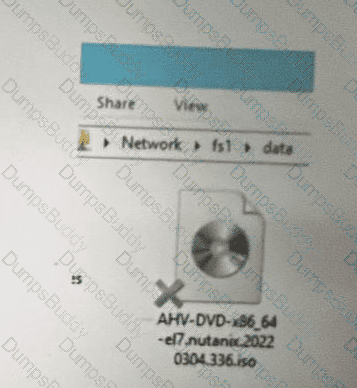
What does the ‘’X’’ represent on the icon?
Options:
Share Disconnected File
Corrupt ISO
Distributed shared file
Tiered File
Answer:
CExplanation:
The “X” on the icon represents a distributed shared file, which is a file that belongs to a distributed share or export. A distributed share or export is a type of SMB share or NFS export that distributes the hosting of top-level directories across multiple FSVMs. The “X” indicates that the file is not hosted by the current FSVM, but by another FSVM in the cluster. The “X” also helps to identify which files are eligible for migration when using the Nutanix Files Migration Tool. References: Nutanix Files Administration Guide, page 34; Nutanix Files Migration Tool User Guide, page 10
Which tool allows a report on file sizes to be automatically generated on a weekly basis?
Options:
Data Lens
Files view in Prism Central
Files Console via Prism Element
File Analytics
Answer:
AExplanation:
Data Lens is a feature that provides insights into the data stored in Files, such as file types, sizes, owners, permissions, and access patterns. Data Lens allows administrators to create reports on various aspects of their data and schedule them to run automatically on a weekly basis. References: Nutanix Data Lens Administration Guide
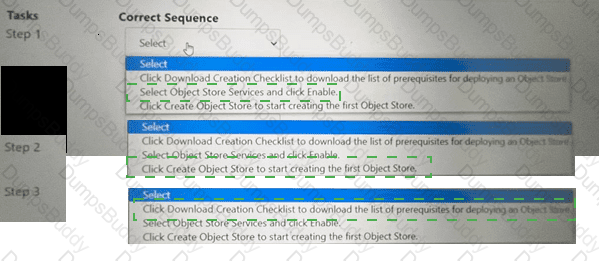
Within the Prism Central Entity > Services > Objects menu option, what is the correct task order for creating an object storage?
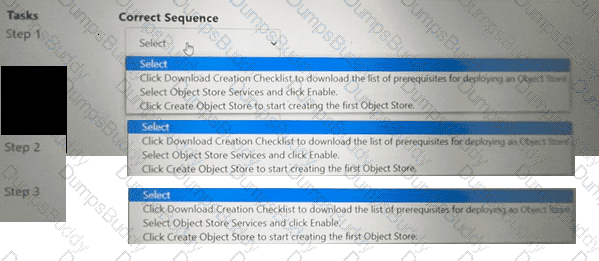
Options:
Answer:
Explanation:
The correct task order for creating an object store is:
Select ObjectStore Service and click Enable
Click Create Object Store to start creating the first Object store
Click Download Creation Checklist to download the list of prerequisites for deploying an Object store
The first step is to enable the ObjectStore Service, which is a service that allows users to create and manage object storage clusters on a Nutanix cluster. The second step is to create an Object store, which is an object storage cluster that provides S3-compatible access to buckets and objects for various applications and users. The third step is to download the Creation Checklist, which is a document that lists the prerequisites and configurations that are required for deploying an Object store, such as cluster details, network details, storage details, etc. The administrator should review and complete the Creation Checklist before proceeding with the deployment of the Object store.
Workload optimization for Files is based on which entity?
Options:
Protocol
File type
FSVM quantity
Block size
Answer:
CExplanation:
Workload optimization in Nutanix Files, part of Nutanix Unified Storage (NUS), refers to the process of tuning the Files deployment to handle specific workloads efficiently. This involves scaling resources to match the workload demands, and the primary entity for optimization is the number of File Server Virtual Machines (FSVMs).
Analysis of Options:
Option A (Protocol): Incorrect. While Nutanix Files supports multiple protocols (SMB, NFS), workload optimization is not directly based on the protocol. Protocols affect client access, but optimization focuses on resource allocation.
Option B (File type): Incorrect. File type (e.g., text, binary) is not a factor in workload optimization for Files. Optimization focuses on infrastructure resources, not the nature of the files.
Option C (FSVM quantity): Correct. Nutanix Files uses FSVMs to distribute file service workloads across the cluster. Workload optimization involves adjusting the number of FSVMs to handle the expected load, ensuring balanced performance and scalability. For example, adding more FSVMs can improve performance for high-concurrency workloads.
Option D (Block size): Incorrect. Block size is relevant for block storage (e.g., Nutanix Volumes), but Nutanix Files operates at the file level, not the block level. Workload optimization in Files does not involve block size adjustments.
Why FSVM Quantity?
FSVMs are the core entities that process file operations in Nutanix Files. Optimizing for a workload (e.g., high read/write throughput, many concurrent users) typically involves scaling the number of FSVMs to distribute the load, adding compute and memory resources as needed, or adjusting FSVM placement for better performance.
Exact Extract from Nutanix Documentation:
From the Nutanix Files Administration Guide (available on the Nutanix Portal):
“Workload optimization in Nutanix Files is achieved by adjusting the number of FSVMs in the file server. For high-performance workloads, you can scale out by adding more FSVMs to distribute the load across the cluster, ensuring optimal resource utilization and performance.”
An organization currently has a Files cluster for their office data including all department shares. Most of the data is considered cold Data and they are looking to migrate to free up space for future growth or newer data.
The organization has recently added an additional node with more storage. In addition, the organization is using the Public Cloud for .. storage needs.
What will be the best way to achieve this requirement?
Options:
Migrate cold data from the Files to tape storage.
Backup the data using a third-party software and replicate to the cloud.
Setup another cluster and replicate the data with Protection Domain.
Enable Smart Tiering in Files within the File Console.
Answer:
DExplanation:
The organization uses a Nutanix Files cluster, part of Nutanix Unified Storage (NUS), for back office data, with most data classified as Cold Data (infrequently accessed). They want to free up space on the Files cluster for future growth or newer data. They have added a new node with more storage to the cluster and are already using the Public Cloud for other storage needs. The goal is to migrate Cold Data to free up space while considering the best approach.
Analysis of Options:
Option A (Set up another cluster and replicate the data with Protection Domain): Incorrect. Setting up another cluster and using a Protection Domain to replicate data is a disaster recovery (DR) strategy, not a solution for migrating Cold Data to free up space. Protection Domains are used to protect and replicate VMs or Volume Groups, not Files shares directly, and this approach would not address the goal of freeing up space on the existing Files cluster—it would simply create a copy on another cluster.
Option B (Enable Smart Tiering in Files within the Files Console): Correct. Nutanix Files supports Smart Tiering, a feature that allows data to be tiered to external storage, such as the Public Cloud (e.g., AWS S3, Azure Blob), based on access patterns. Cold Data (infrequently accessed) can be automatically tiered to the cloud, freeing up space on the Files cluster while keeping the data accessible through the same share. Since the organization is already using the Public Cloud, Smart Tiering aligns perfectly with their infrastructure and requirements.
Option C (Migrate cold data from Files to tape storage): Incorrect. Migrating data to tape storage is a manual and outdated process for archival. Nutanix Files does not have native integration with tape storage, and this approach would require significant manual effort, making it less efficient than Smart Tiering. Additionally, tape storage is not as easily accessible as cloud storage for future retrieval.
Option D (Back up the data using a third-party software and replicate to the cloud): Incorrect. While backing up data with third-party software and replicating it to the cloud is feasible, it is not the best approach for this scenario. This method would create a backup copy rather than freeing up space on the Files cluster, and it requires additional software and management overhead. Smart Tiering is a native feature that achieves the goal more efficiently by moving Cold Data to the cloud while keeping it accessible.
Why Option B?
Smart Tiering in Nutanix Files is designed for exactly this use case: moving Cold Data to a lower-cost storage tier (e.g., Public Cloud) to free up space on the primary cluster while maintaining seamless access to the data. Since the organization is already using the Public Cloud and has added a new node (which increases local capacity but doesn’t address Cold Data directly), Smart Tiering leverages their existing cloud infrastructure to offload Cold Data, freeing up space for future growth or newer data. This can be configured in the Files Console by enabling Smart Tiering and setting policies to tier Cold Data to the cloud.
Exact Extract from Nutanix Documentation:
From the Nutanix Files Administration Guide (available on the Nutanix Portal):
“Smart Tiering in Nutanix Files allows administrators to tier Cold Data to external storage, such as AWS S3 or Azure Blob, to free up space on the primary Files cluster. This feature can be enabled in the Files Console, where policies can be configured to identify and tier infrequently accessed data while keeping it accessible through the same share.”
Which two prerequisites are needed when deploying Objects to a Nutanix cluster? (Choose two.)
Options:
Microsegmentation is enabled.
Data Services IP is configured on the PI
DNS is configured on the PE.
AHV IPAM is disabled on the VLAN used for Objects.
Answer:
BExplanation:
Nutanix Objects requires a Data Services IP to be configured on the Prism Infrastructure (PI) cluster, which is used to expose the S3 API endpoint for accessing buckets and objects. Nutanix Objects also requires AHV IP Address Management (IPAM) to be disabled on the VLAN used for Objects, as Objects uses its own DHCP service to assign IP addresses to the Objects VMs1. References: Nutanix Objects Administration Guide1
An administrator wants to monitor their Files environment for suspicious activities, such mass deletion or access denials.
How can the administrator be alerted to such activities?
How can the administrator be alerted to such activities?
Options:
Configure Alerts & Events in the Files Console, filtering for Warning severity.
Deploy the Files Analytics VM. and configure anomaly rules.
Configure Files to use ICAP servers, with monitors for desired activities.
Create a data protection policy in the Files view in Prism Central.
Answer:
BExplanation:
The administrator can monitor their Files environment for suspicious activities, such as mass deletion or access denials, by deploying the File Analytics VM and configuring anomaly rules. File Analytics is a feature that provides insights into the usage and activity of file data stored on Files. File Analytics consists of a File Analytics VM (FAVM) that runs on a Nutanix cluster and communicates with the File Server VMs (FSVMs) that host the file shares. File Analytics can alert the administrator when there is an unusual or suspicious activity on file data, such as mass deletion, encryption, permission change, or access denial. The administrator can configure anomaly rules to define the threshold, time window, and notification settings for each type of anomaly. References: Nutanix Files Administration Guide, page 93; Nutanix File Analytics User Guide
What is the result of an administrator applying the lifecycle policy "Expire current objects after # days/months/years" to an object with versioning enabled?
Options:
The policy deletes any past versions of the object after the specified time and does not delete any current version of the object.
The policy deletes the current version of the object after the specified time and does not delete any past versions of the object.
The policy does not delete the current version of the object after the specified time and does not delete any past versions of the object.
The policy deletes any past versions of the object after the specified time and deletes any current version of the object.
Answer:
BExplanation:
Nutanix Objects, part of Nutanix Unified Storage (NUS), supports lifecycle policies to manage the retention and expiration of objects in a bucket. When versioning is enabled, a bucket can store multiple versions of an object, with the “current version” being the latest version and “past versions” being older iterations. The lifecycle policy “Expire current objects after # days/months/years” specifically targets the current version of an object.
Analysis of Options:
Option A (The policy deletes any past versions of the object after the specified time and does not delete any current version of the object): Incorrect. The “Expire current objects” policy targets the current version, not past versions. A separate lifecycle rule (e.g., “Expire non-current versions”) would be needed to delete past versions.
Option B (The policy deletes the current version of the object after the specified time and does not delete any past versions of the object): Correct. The “Expire current objects” policy deletes the current version of an object after the specified time period (e.g., # days/months/years). Since versioning is enabled, past versions are not affected by this policy and remain in the bucket unless a separate rule targets them.
Option C (The policy does not delete the current version of the object after the specified time and does not delete any past versions of the object): Incorrect. The policy explicitly states that it expires (deletes) the current version after the specified time, so this option contradicts the policy’s purpose.
Option D (The policy deletes any past versions of the object after the specified time and deletes any current version of the object): Incorrect. The “Expire current objects” policy does not target past versions—it only deletes the current version after the specified time.
Why Option B?
When versioning is enabled, the lifecycle policy “Expire current objects after # days/months/years” applies only to the current version of the object. After the specified time, the current version is deleted, and the most recent past version becomes the new current version (if no new uploads occur). Past versions are not deleted unless a separate lifecycle rule (e.g., for non-current versions) is applied.
Exact Extract from Nutanix Documentation:
From the Nutanix Objects Administration Guide (available on the Nutanix Portal):
“When versioning is enabled on a bucket, the lifecycle policy ‘Expire current objects after # days/months/years’ deletes the current version of an object after the specified time period. Past versions of the object are not affected by this policy and will remain in the bucket unless a separate lifecycle rule is applied to expire non-current versions.”
Life Cycle Manager must have compatible versions of which two components before installing or upgrading Files? (Choose two.)
Options:
Nutanix Cluster Check
Active Directory Services
File Server Module
Acropolis Operating System
Answer:
A, DExplanation:
Nutanix Files, part of Nutanix Unified Storage (NUS), can be installed or upgraded using Life Cycle Manager (LCM), a tool in Prism Central or Prism Element for managing software updates. Before installing or upgrading Files, LCM must ensure that the underlying components are compatible to avoid issues during the process.
Analysis of Options:
Option A (Nutanix Cluster Check): Correct. Nutanix Cluster Check (NCC) is a health and compatibility checking tool integrated with LCM. LCM requires a compatible version of NCC to perform pre-upgrade checks and validate the cluster’s readiness for a Files installation or upgrade. NCC ensures that the cluster environment (e.g., hardware, firmware, software) is compatible with the Files version being installed or upgraded.
Option B (Active Directory Services): Incorrect. Active Directory (AD) Services are used by Nutanix Files for user authentication (e.g., for SMB shares or multiprotocol access, as in Question 60), but AD is not a component managed by LCM, nor is it a prerequisite for LCM compatibility. AD configuration is a separate requirement for Files functionality, not LCM operations.
Option C (File Server Module): Incorrect. There is no “File Server Module” component in Nutanix terminology. Nutanix Files itself consists of File Server Virtual Machines (FSVMs), but this is the component being upgraded, not a prerequisite for LCM. LCM manages the Files upgrade directly and does not require a separate “module” compatibility.
Option D (Acropolis Operating System): Correct. The Acropolis Operating System (AOS) is the core operating system of the Nutanix cluster, managing storage, compute, and virtualization. LCM requires a compatible AOS version to install or upgrade Files, as Files relies on AOS features (e.g., storage, networking) and APIs. LCM checks the AOS version to ensure it meets the minimum requirements for the target Files version.
Selected Components:
A: NCC ensures cluster compatibility and readiness, which LCM relies on for Files installation or upgrades.
D: AOS provides the underlying platform for Files, and LCM must ensure its version is compatible with the Files version being deployed.
Exact Extract from Nutanix Documentation:
From the Nutanix Files Administration Guide (available on the Nutanix Portal):
“Before installing or upgrading Nutanix Files using Life Cycle Manager (LCM), ensure that LCM has compatible versions of Nutanix Cluster Check (NCC) and Acropolis Operating System (AOS). NCC performs pre-upgrade checks to validate cluster readiness, while AOS must meet the minimum version requirements for the target Files version.”
An administrator needs to ensure maximum performance, throughput, and redundancy for the company’s Oracle RAC on Linux implementation, while using the native method for securing workloads.
Which configuration meets these requirements?
Options:
Flies with a distributed share and ABE
Files with a general purpose share and File Blocking
Volumes with MPIO and a single vDisk
Volumes with CHAP and multiple vDisks
Answer:
CExplanation:
Volumes is a feature that allows users to create and manage block storage devices (volume groups) on a Nutanix cluster. Volume groups can be accessed by external hosts using the iSCSI protocol. To ensure maximum performance, throughput, and redundancy for Oracle RAC on Linux implementation, while using the native method for securing workloads, the recommended configuration is to use Volumes with MPIO (Multipath I/O) and a single vDisk (virtual disk). MPIO is a technique that allows multiple paths between an iSCSI initiator and an iSCSI target, which improves performance and availability. A single vDisk is a logical unit number (LUN) that can be assigned to multiple hosts in a volume group, which simplifies management and reduces overhead. References: Nutanix Volumes Administration Guide, page 13; Nutanix Volumes Best Practices Guide
Which prerequisite is required to deploy Objects on AHV or ESXi?
Options:
Prism Central version is 5.17.1 or later
Port 9440 is accessible on both PE and PC
Valid SSL Certificate
Nutanix STARTER License
Answer:
BExplanation:
Nutanix Objects, part of Nutanix Unified Storage (NUS), is an S3-compatible object storage solution that can be deployed on AHV or ESXi hypervisors. Deploying Objects has specific prerequisites to ensure successful installation and operation.
Analysis of Options:
Option A (Prism Central version is 5.17.1 or later): Incorrect. While Nutanix Objects requires Prism Central for deployment and management, the minimum version for Objects deployment is typically lower (e.g., Prism Central 5.15 or later, depending on the Objects version). Version 5.17.1 is not a specific requirement for Objects deployment on AHV or ESXi.
Option B (Port 9440 is accessible on both PE and PC): Correct. Port 9440 is used for communication between Prism Element (PE) and Prism Central (PC), as well as for internal Nutanix services. When deploying Objects, Prism Central communicates with the cluster (via Prism Element) to deploy Object Store Service VMs. This communication requires port 9440 to be open between PE and PC, making it a key prerequisite.
Option C (Valid SSL Certificate): Incorrect. While a valid SSL certificate is recommended for secure communication (e.g., for S3 API access), it is not a strict prerequisite for deploying Objects. Objects can be deployed with self-signed certificates, though Nutanix recommends replacing them with valid certificates for production use.
Option D (Nutanix STARTER License): Incorrect. The Nutanix STARTER license is an entry-level license for basic cluster functionality (e.g., VMs, storage). However, Nutanix Objects requires a separate license (e.g., Objects license or a higher-tier AOS license like Pro or Ultimate). The STARTER license alone does not support Objects deployment.
Why Option B?
Port 9440 is critical for communication between Prism Element and Prism Central during the deployment of Objects. If this port is blocked, the deployment will fail, as Prism Central cannot communicate with the cluster to deploy the Object Store Service VMs.
Exact Extract from Nutanix Documentation:
From the Nutanix Objects Deployment Guide (available on the Nutanix Portal):
“Before deploying Nutanix Objects on AHV or ESXi, ensure that port 9440 is accessible between Prism Element (PE) and Prism Central (PC). This port is required for communication during the deployment process, as Prism Central manages the deployment of Object Store Service VMs on the cluster.”
Which two audit trails can be monitored within Data Lens? (Choose two.)
Options:
User Emails
Client IPs
Files
Anomalies
Answer:
B, CExplanation:
Nutanix Data Lens, a service integrated with Nutanix Unified Storage (NUS), provides data governance and security features for Nutanix Files. One of its key features is Audit Trails, which tracks user activities and file operations. The audit trails include specific details that can be monitored and reported.
Analysis of Options:
Option A (User Emails): Incorrect. Data Lens Audit Trails track user activities, but they do not specifically log user emails as an audit trail metric. User identities (e.g., usernames) are logged, but email addresses are not a standard audit trail field.
Option B (Client IPs): Correct. Data Lens Audit Trails include the client IP addresses from which file operations are performed, allowing administrators to track the source of user actions (e.g., which IP accessed or modified a file).
Option C (Files): Correct. Data Lens Audit Trails track file-level operations, such as access, modifications, deletions, and permission changes, making “Files” a key audit trail metric.
Option D (Anomalies): Incorrect. While Data Lens does detect anomalies (e.g., ransomware activity, unusual file operations), anomalies are a separate feature, not an audit trail. Audit Trails focus on logging specific user and file activities, while anomalies are derived from analyzing those activities.
Selected Audit Trails:
B: Client IPs are logged in audit trails to identify the source of file operations.
C: Files are the primary entities tracked in audit trails, with details on operations performed on them.
Exact Extract from Nutanix Documentation:
From the Nutanix Data Lens Administration Guide (available on the Nutanix Portal):
“Data Lens Audit Trails provide detailed logging of file operations, including the files affected, the user performing the action, and the client IP address from which the operation was initiated. This allows administrators to monitor user activities and track access patterns.”
Nutanix Objects can use no more than how many vCPUs for each AHV or ESXi node?
Options:
12
16
8
10
Answer:
CExplanation:
Nutanix Objects, a component of Nutanix Unified Storage (NUS), provides an S3-compatible object storage solution. It is deployed as a set of virtual machines (Object Store Service VMs) running on the Nutanix cluster’s hypervisor (AHV or ESXi). The resource allocation for these VMs, including the maximum number of vCPUs per node, is specified in the Nutanix Objects documentation to ensure optimal performance and resource utilization.
According to the official Nutanix documentation, each Object Store Service VM is limited to a maximum of 8 vCPUs per node (AHV or ESXi). This constraint ensures that the object storage service does not overburden the cluster’s compute resources, maintaining balance with other workloads.
Option C: Correct. The maximum number of vCPUs for Nutanix Objects per node is 8.
Option A (12), Option B (16), and Option D (10): Incorrect, as they exceed or do not match the documented maximum of 8 vCPUs per node.
Exact Extract from Nutanix Documentation:
From the Nutanix Objects Administration Guide (available on the Nutanix Portal):
“Each Object Store Service VM deployed on an AHV or ESXi node is configured with a maximum of 8 vCPUs to ensure efficient resource utilization and performance. This limit applies per node hosting the Object Store Service.”
Additional Notes:
The vCPU limit is per Object Store Service VM on a given node, not for the entire Objects deployment. Multiple VMs may run across different nodes, but each is capped at 8 vCPUs.
The documentation does not specify different limits for AHV versus ESXi, so the 8 vCPU maximum applies universally.
An administrator needs to add a signature to the ransomware block list. How should the administrator complete this task?
Options:
Open a support ticket to have the new signature added. Nutanix support will provide an updated Block List file.
Add the file signature to the Blocked Files Type in the Files Console.
Search the Block List for the file signature to be added, click Add to Block List when the signature is not found in File Analytics.
Download the Block List CSV file, add the new signature, then upload the CSV.
Answer:
AExplanation:
Nutanix Files, part of Nutanix Unified Storage (NUS), can protect against ransomware using integrated tools like File Analytics and Data Lens, or through integration with third-party solutions. In Question 56, we established that a third-party solution is best for signature-based ransomware prevention with a large list of malicious file signatures (300+). The administrator now needs to add a new signature to the ransomware block list, which refers to the list of malicious file signatures used for blocking.
Analysis of Options:
Option A (Open a support ticket to have the new signature added. Nutanix support will provide an updated Block List file): Correct. Nutanix Files does not natively manage a signature-based ransomware block list within its own tools (e.g., File Analytics, Data Lens), as these focus on behavioral detection (as noted in Question 56). For signature-based blocking, Nutanix integrates with third-party solutions, and the block list (signature database) is typically managed by Nutanix or the third-party provider. To add a new signature, the administrator must open a support ticket with Nutanix, who will coordinate with the third-party provider (if applicable) to update the Block List file and provide it to the customer.
Option B (Add the file signature to the Blocked Files Type in the Files Console): Incorrect. The “Blocked Files Type” in the Files Console allows administrators to blacklist specific file extensions (e.g., .exe, .bat) to prevent them from being stored on shares. This is not a ransomware block list based on signatures—it’s a simple extension-based blacklist, and file signatures (e.g., hashes or patterns used for ransomware detection) cannot be added this way.
Option C (Search the Block List for the file signature to be added, click Add to Block List when the signature is not found in File Analytics): Incorrect. File Analytics provides ransomware detection through behavioral analysis (e.g., anomaly detection, as in Question 7), not signature-based blocking. There is no “Block List” in File Analytics for managing ransomware signatures, and it does not have an “Add to Block List” option for signatures.
Option D (Download the Block List CSV file, add the new signature, then upload the CSV): Incorrect. Nutanix Files does not provide a user-editable Block List CSV file for ransomware signatures. The block list for signature-based blocking is managed by Nutanix or a third-party integration, and updates are handled through support (option A), not by manually editing a CSV file.
Why Option A?
Signature-based ransomware prevention in Nutanix Files relies on third-party integrations, as established in Question 56. The block list of malicious file signatures is not user-editable within Nutanix tools like the Files Console or File Analytics. To add a new signature, the administrator must open a support ticket with Nutanix, who will provide an updated Block List file, ensuring the new signature is properly integrated with the third-party solution.
Exact Extract from Nutanix Documentation:
From the Nutanix Files Administration Guide (available on the Nutanix Portal):
“For signature-based ransomware prevention, Nutanix Files integrates with third-party solutions that maintain a block list of malicious file signatures. To add a new signature to the block list, open a support ticket with Nutanix. Support will coordinate with the third-party provider (if applicable) and provide an updated Block List file to include the new signature.”